Icons
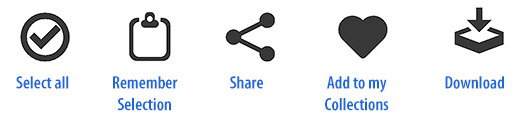
Clicking on one of these icons will allow you to perform a new action. Hover over each Icon to see what it does. Click a 2nd time to release your selection.


NOTE:
If images are not downloading, make sure to enable Pop-ups on your browser this will allow zip folders to be downloaded.

Download
Files can be downloaded by clicking on the download icon in the thumbnail. To download multiple files, select the files you wish to download by clicking the checkmark in their thumbnails.
After selecting the files, click the download icon in the upper right corner.
On Google Chrome, look above at the far right of the search bar for a pop up icon and select ‘always allow’:
On MozillaFirefox, look above at the yellow preference bar and select ‘allow pop -ups’:
On Safari, click on Safari –> Preferences –> Privacy and then select ‘Allow current website only’:
For all other Internet browsers, you will have to undergo a similar process to allow zip folders to be downloaded.

Share
You can choose to send your selected files in TWO convienent ways.
 Files can be shared by Email — First select the file or files that you wish to share.You can access the share window by clicking the Share button.
Click the email icon in the share window.
 Files can also be shared via a Link — To share files with external users without using email, use a Link. First select the file or files that you wish to share.You can access the share window by clicking the Share button. The link option appears in the share window as the chain_link icon like this.
NOTE:
No matter how you share a file the recipeient(s) will still be able to choose the file format options and size to download.