
Searching and Selecting
The simplest form of searching for records is by double-clicking on the drop down Category tree on the left side. This quickly finds all of the records that are associated with that category and will show you how many files are found.
The search bar is available to use on any page in the main interface.
It is located in the upper-right corner of your screen.
To use the search bar, click the search field and type anything related to the media library files.
Press Enter to execute the search. The search bar accepts up to 80 characters.
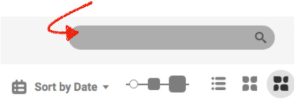
A normal search will be a global search, anything in the files that is related to what was searched will be displayed. This can be titles, tags, keywords, Product IDs, dimensions, dates, folders, albums, etc.
Using the search function, you can perform a quick search which is a contain search in the records field. Search by Category or Record name
Click on the thumbnail to see a larger view with all of the *meta data that you or your graphic designer could ever ask for.
*Metadata is simply data about data. It means it is a description and context of the data. It helps to organize, find and understand data. i.e name, file format,dates,categories,color mode,color model pixels and resolutions.
Razzbonicʻs advanced search options gives you the ability to dive even deeper into your searches to locate specific media files.
The advanced search menu is divided into three sections:
1. Search:

You can decide to do a global search (the default search) or search exclusively within the currently posted results.
2. Combine terms: A *boolean-style search for files.
*A system of logic based on two possible values: true or false. The Razzbonic Advanced Search uses the Boolean operators “and” and “or” to combine search conditions.
The robust combined terms search tool has capacities to look for more dedicated, refined selections: NOTE:
Using a space ( ), a comma (,), or a semicolon (;) will all work to separate terms.
Select AND (the default setting) to search for files with all of the words in the text field. eg. lettuce; tomato; carrot
- Entering multiple search terms with separation will yield a result fielding all files that match exactly the search term. eg. Searching for Honolulu will generate results that shows exactly the words “Honolulu”
- Using the minus sign to designate the purposeful absence of a term you would like to exclude.
- For example, if you’d like to search for files containing “apple” but not “orange,” you would enter into the search bar apple, -orange.
Select OR to search for files that include at least one of the typed words.
- Entering multiple search terms with separation will yield a result fielding all files that match at least a part of the search term. eg. Searching for Big Island will generate results that have both the words ‘Big’ and ‘Island.’
- Since the OR search tool allows you to search multiple files, you can search for many terms at once. Type in your search terms that you would like included into the search, and the results will yield all files that match with one of the terms you’ve entered. eg. 101, 102, 103, 125, 387, 815
- – The Wildcard Search lets you search for a term with only approximate knowledge of its file name by using an asterisk * before or after the term.
- For example, you know that a file has the word pineapple in it, but is unsure of what comes before or after it. Entering *pineapple or pineapple* will yield results for all files that include the word, regardless of what comes before or after the term. The setting can be either AND or OR.
3. Only within fields:
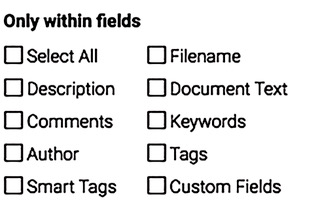
This option is for users who want a specific search within certain fields. You may narrow your searches even further by checking these boxes
The fields that can be searched are Description, Keywords, Tags, Custom Fields, Filename, Comments, Author, and Smart Tags. You can choose to search in one field, multiple fields, or click Select All to search in all eight fields.
Keywords make it so much easier to search for and find specific media files.